
What changes scan quality
The camera matters before the software does.
Fill the frame with the date
Google's ML Kit guidance says each character should ideally cover at least 16 by 16 pixels. Move closer instead of leaving the date as a tiny part of the package photo.
Keep edges sharp
Blur and low resolution reduce recognition accuracy. Hold the phone steady, tap to focus, and retake the photo when the printed edges look soft.
Move glare away from the print
Glossy film, curved lids, embossed ink, and shadows can hide characters. Tilt the package or light source until the entire date is readable to you.
A reliable four-step scan
Treat OCR as a shortcut, not the final decision.
Find the printed label first
Locate the date and the words beside it, such as use-by or best-before. Keep the original package in hand while you scan.
Photograph only the useful area
Bring the date close, keep it level, and avoid glare. A smaller crop with clear characters is more useful than a distant photo of the whole package.
Review every date candidate
OCR may also find a production date, lot code, price, or nutrition number. Compare each candidate with the original print before saving.
Correct the result immediately
Check the day, month, year, and date order. Fix a wrong digit while the package is still in front of you, then schedule the reminder.
What OCR cannot know
Recognizing characters is not the same as understanding the food label.
Text recognition can extract visible characters, but it cannot reconstruct storage history or decide whether a printed date is a safety date, a quality date, or a manufacturing code. Keep the package and local food-safety guidance as the authority.
How fridgiary uses the scan
Find the date locally, then keep you in control.
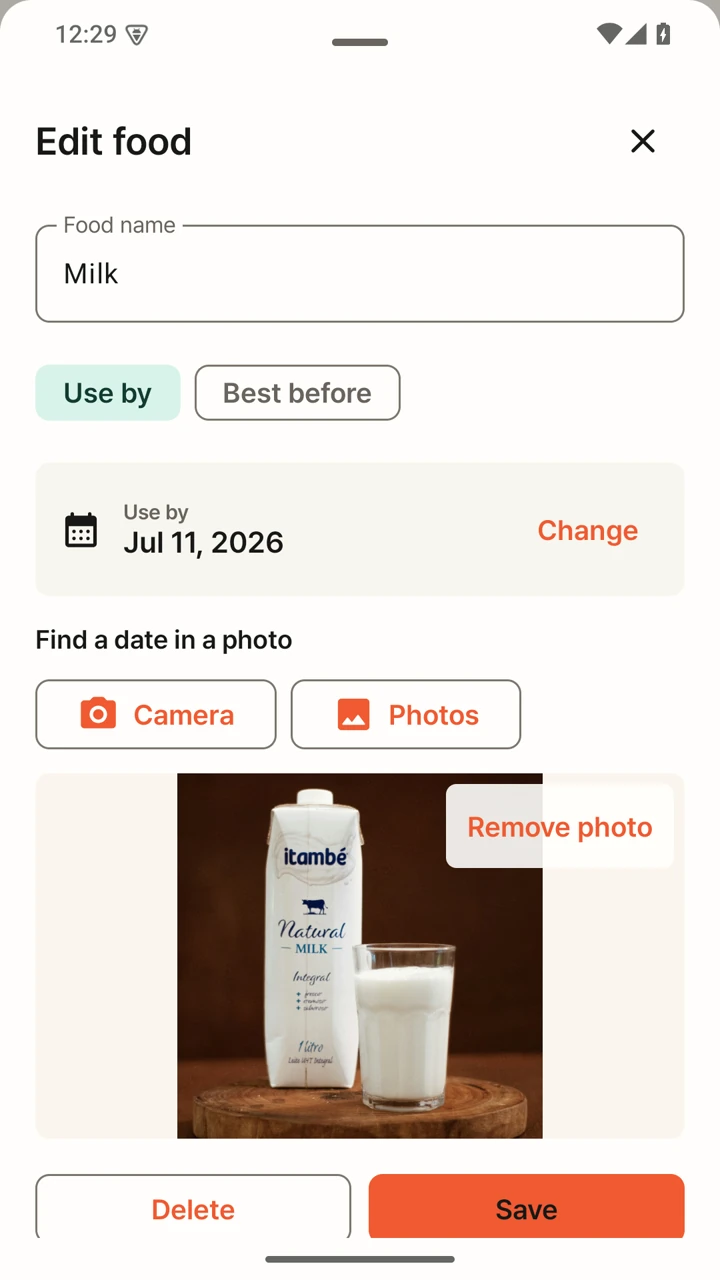
fridgiary runs Latin and Korean text recognition on your Android device, shows the date candidates it finds, and requires you to confirm or correct the date before it is saved.
- Start with a camera photo or an image from your library
- Run Latin and Korean text recognition on the device
- Confirm or correct the date before saving
- Keep the selected package photo with the food item
Common questions
What to expect from an expiration-date scanner
Can a photo scanner read every expiration date automatically?
No. Small print, glare, blur, curved packaging, unusual fonts, and ambiguous date formats can all affect the result. Use the scan to reduce typing, then verify it against the package.
Why did the scan find several dates?
A package may contain a best-before date, production date, lot code, price, or other numbers. fridgiary presents candidates so you can select the one that matches the printed label.
Does the photo leave my phone?
In fridgiary, the date scan runs on the Android device. The selected image and food record stay in the app's local storage and are not uploaded to a fridgiary server.
Can the app tell whether food is safe to eat?
No. A scan cannot know how the food was stored or what a label means in every market. Follow the package and the food-safety authority where the product was sold.
Technical sources
Why clear photos and human confirmation matter
Android
Try the scan with a package already in your fridge.
fridgiary is currently in Google Play closed testing.